

Custom knowledge base URL
If you want to publish Zammad's knowledge base under a different URL than the default one, you can follow our configuration example using NPM (Nginx Proxy Manager) below.
Configure Zammad
- Go to Knowledge Base in Zammad's admin settings and select the Custom URL tab.
- Add the URL you want to publish your knowledge base under and click the
Submitbutton. - Click on the
Web Server Configurationbutton to get the configuration for your NPM. You can already copy the snippet or just leave it open; it is needed for the NPM configuration.
Configure NPM
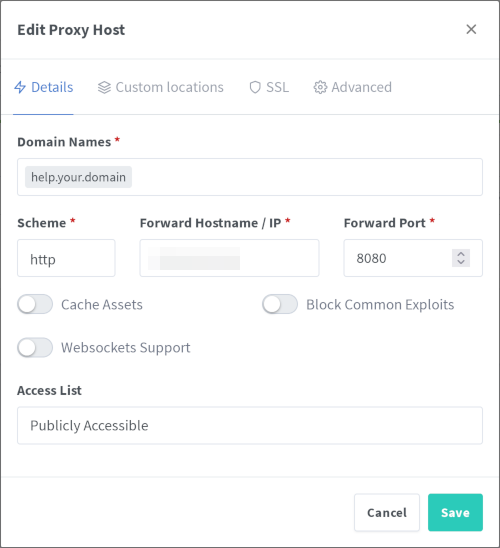
In NPM, add a new proxy host with the following parameters:
Details tab
- Domain Names: the domain under which you want to publish your knowledge base
- Forwarded Hostname / IP: the host/IP of your Zammad instance
- Forward Port: the port of your Zammad (by default
8080in Portainer deployment)
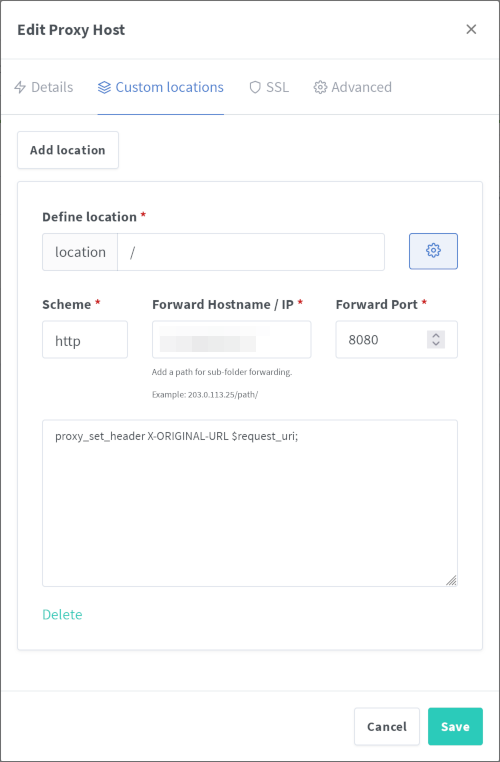
Custom location tab
- Define location:
/ - Forward Hostname / IP: same as above
- Forward Port: same as above
- Click on the cogwheel to open the custom location configuration text field and paste
proxy_set_header X-ORIGINAL-URL $request_uri;(the lower part of Zammad's snippet)
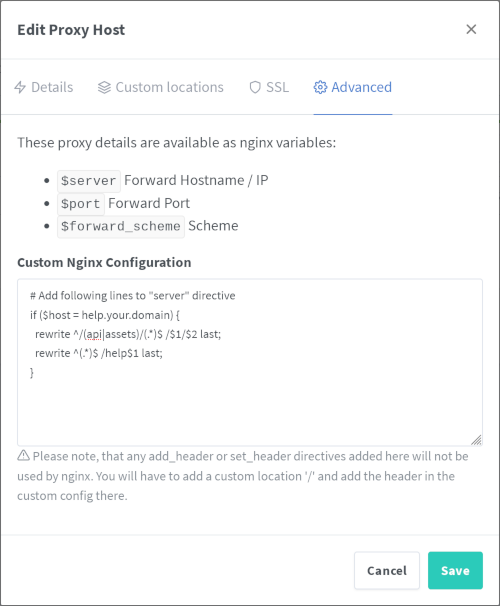
Advanced tab
Custom Nginx Configuration: add the upper part of Zammad's snippet, which should be similar to the following:
text
# Add following lines to "server" directive
if ($host = help.your.domain ) {
  rewrite ^/(api|assets)/(.*)$ /$1/$2 last;
  rewrite ^(.*)$ /help$1 last;
}
After following these steps, your knowledge base should be published under a custom URL. You can test it by clicking the preview button in your knowledge base.