

Knowledge base
The knowledge base is Zammad's built-in library for FAQs, how-tos and internal documentation. Customers browse published answers for self-service, agents use them as a reference or insert them directly into ticket replies.
Basics
Your administrator has to activate the knowledge base and grant you the reader or editor permission before you can work with it. Whether you can read internal answers or edit content depends on this configuration. Zammad supports one knowledge base per system, which can hold content in several languages. To open the knowledge base, click on Knowledge Base in the primary navigation.
Structure
The knowledge base is built from two kinds of content. Categories work like folders in a file system: they group content, can contain further subcategories and each one needs a title and an icon. Answers are the pages or articles themselves and have a title plus rich content, living inside a category.
Multiple languages
If your administrator enabled several locales for the knowledge base, an answer can exist in more than one language, one translation per language. To switch the language, use the selector in the top bar to read or edit another language. An answer that has no translation in the selected language yet opens in an empty state in the editor.
Visibility
Every answer has one of four visibility states. The state is shown as a colored icon on the answer and on its category tile:
| Color | Visibility | Who can see it |
|---|---|---|
| Green | Published | Everyone, including customers on the public help site |
| Blue | Internal | Agents with knowledge base reader permission |
| Gray | Draft | Editors only |
| Gray | Archived | Editors only |
When viewing or editing an answer, a badge in the top bar shows you the current or planned (scheduled) visibility too.
Use in tickets
The knowledge base unfolds part of its value inside tickets: insert an answer into a reply with ??, link related answers to a ticket and let AI suggest or draft knowledge base answers based on the ticket content. These workflows are covered in Insert knowledge base article and in the knowledge base assistant section of the AI guide.
Read the knowledge base
Browse
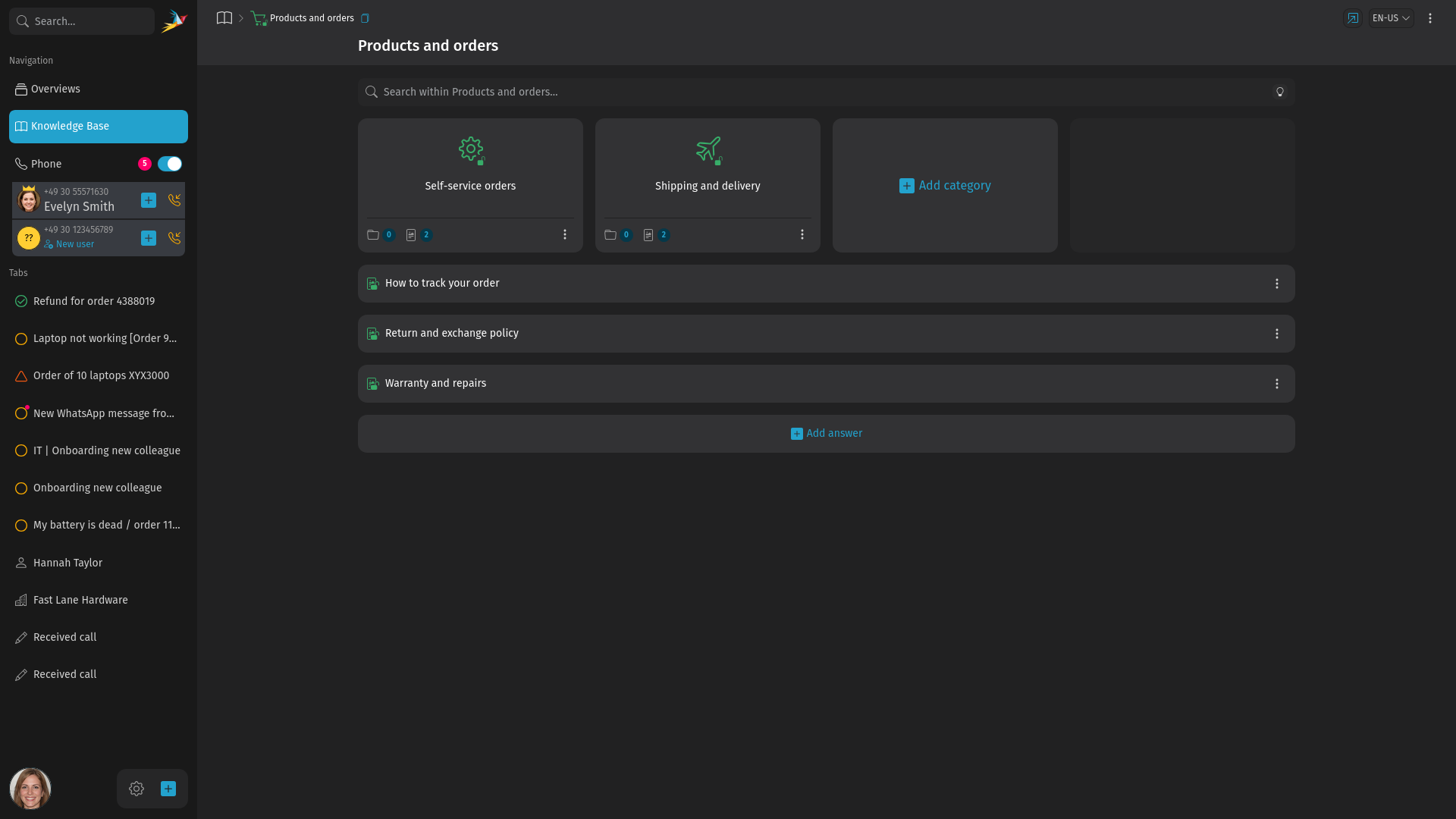
The knowledge base home shows one tile for every top-level category, arranged in a grid. Each tile shows the category icon, its title, its publication state and two counts: the number of subcategories and the number of answers it contains across all subcategories.
To open a category, simply click on its tile. Its subcategories appear as tiles on top, its answers below them as a list. Select an answer to read it. Use the back and forward buttons in the top bar to jump between previous and next answers inside the same category.
Use the search bar on top to search the knowledge base. Use the language selector to switch between translated content. The knowledge base icon at the start of the breadcrumb in the top bar takes you back to the knowledge base home. The preview button with the tooltip View public knowledge base on the right side of the top bar shows the knowledge base as your customers see it.
Search
The search bar on top of the knowledge base searches answer titles and content as well as category titles. When you start the search from within a category, only this category and its subcategories are searched.
Search terms support Elasticsearch syntax. All terms have to match and plain terms also match word beginnings, so refund finds refunds. To filter by a field, name the field in your search:
| Example | Finds |
|---|---|
created_at:>now-14d | Answers created within the last 14 days |
edited_at:>now-3d | Answers updated within the last 3 days |
tags:ai-generated | Answers tagged ai-generated |
publication_state:draft | All draft answers |
The tags: and publication_state: fields require Elasticsearch. Searches that name a field match exactly and do not use prefix matching.
Select the light bulb in the search bar for suggested searches. It offers the most common filters as one-click shortcuts and a link to this documentation.
Knowledge base answers also appear in the global search. In the detailed search, they are available as a separate search entity with title, visibility and update date as result columns. See Search for the detailed search and the full Elasticsearch syntax.
Edit the knowledge base
Categories
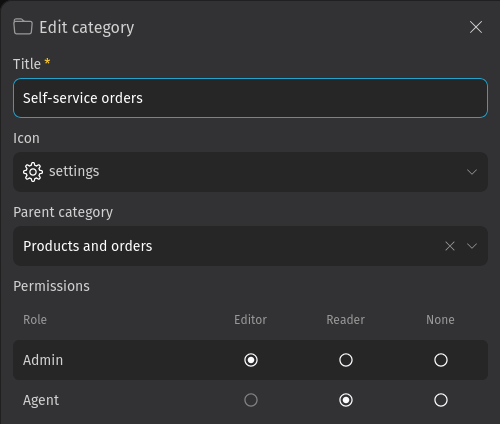
To create a category, select the + Add category card. This works on the knowledge base home for top-level categories as well as inside a category for subcategories. Another way to create a new category inside another category is to use the button on the category tile and select Add sub-category.
Each category consists of a title and an icon. Icons help users recognize categories at a glance, so pick the one that fits the content best.
To edit a category, click the menu on its tile and select Edit category or use the identical button on the top of the right sidebar when inside a category.
Category permissions
The category flyout contains a Permissions matrix that assigns individual roles their own access level to a category. Three levels are available: Editor to read and edit the content of the category, Reader to read it including internally published answers and None to hide it from the role (published answers are always visible in the published knowledge base). Roles without the knowledge base reader or editor permission have no row in the matrix.
By default, access is managed globally: everyone with the knowledge base reader permission sees all internally published answers, editors can work with everything. Saving a permission matrix for the knowledge base or a single category that differs from these defaults switches the whole knowledge base to granular access: content visibility then follows the per-category permissions. Selecting only the access a role already has by default is not stored and keeps the global behavior.
Permissions of a parent category are inherited by its subcategories. An inherited Editor or None level cannot be overridden in the subcategory, the matching options are locked. An inherited Reader level can be changed. The Editor option is locked for roles that only have the knowledge base reader permission. A change that would take away your own editor access to a category is rejected, regardless of your other roles. Published answers stay available to everyone, granular permissions only affect internal answers and the editing of content.
Answers
To add an answer, open a category and select the + Add answer entry or use the category's menu and select Add answer there. An answer consists of a title and rich content. The editor provides the same formatting capabilities as the ticket article editor. See the formatting section of the editor guide for details. Tags make answers easier to find, both in the knowledge base search and while working on tickets.
Within an answer you can link to other knowledge base answers. Select the corresponding tool in the editor toolbar and pick the answer to link to. Knowledge base links stay correct when the target answer moves to another category.
Answers support live collaboration: when several editors open the same answer for editing, Zammad shows who else is editing and keeps everyone's changes together.
While you edit, your work is saved automatically as a draft. If you close the tab or the browser, come back to it later and continue where you left off. Until you save the answer explicitly, you can discard the unsaved changes.
The editor offers more than formatted text. You can embed images from your computer directly in the answer body, embed videos via a video URL and add file attachments which readers download from the attachment section below the answer. For videos, YouTube and Vimeo work out of the box, while self-hosted PeerTube and MediaCMS instances can be added by your administrator. Readers can select an image in an answer to open a larger preview of it.
Move content
To move a category including its content to another parent category, open the menu of the category and select Edit category. Pick the new parent in the Parent category field and save. The category and all its subcategories and answers move along.
To move an answer, edit the answer and select another category in the right sidebar.
Delete content
Categories and answers can be deleted from their menus (Delete category, Delete answer). Deleting a category requires you to delete its subcategories and answers before. A deletion can't be undone so consider archiving an answer instead to not lose its content.
Sort content
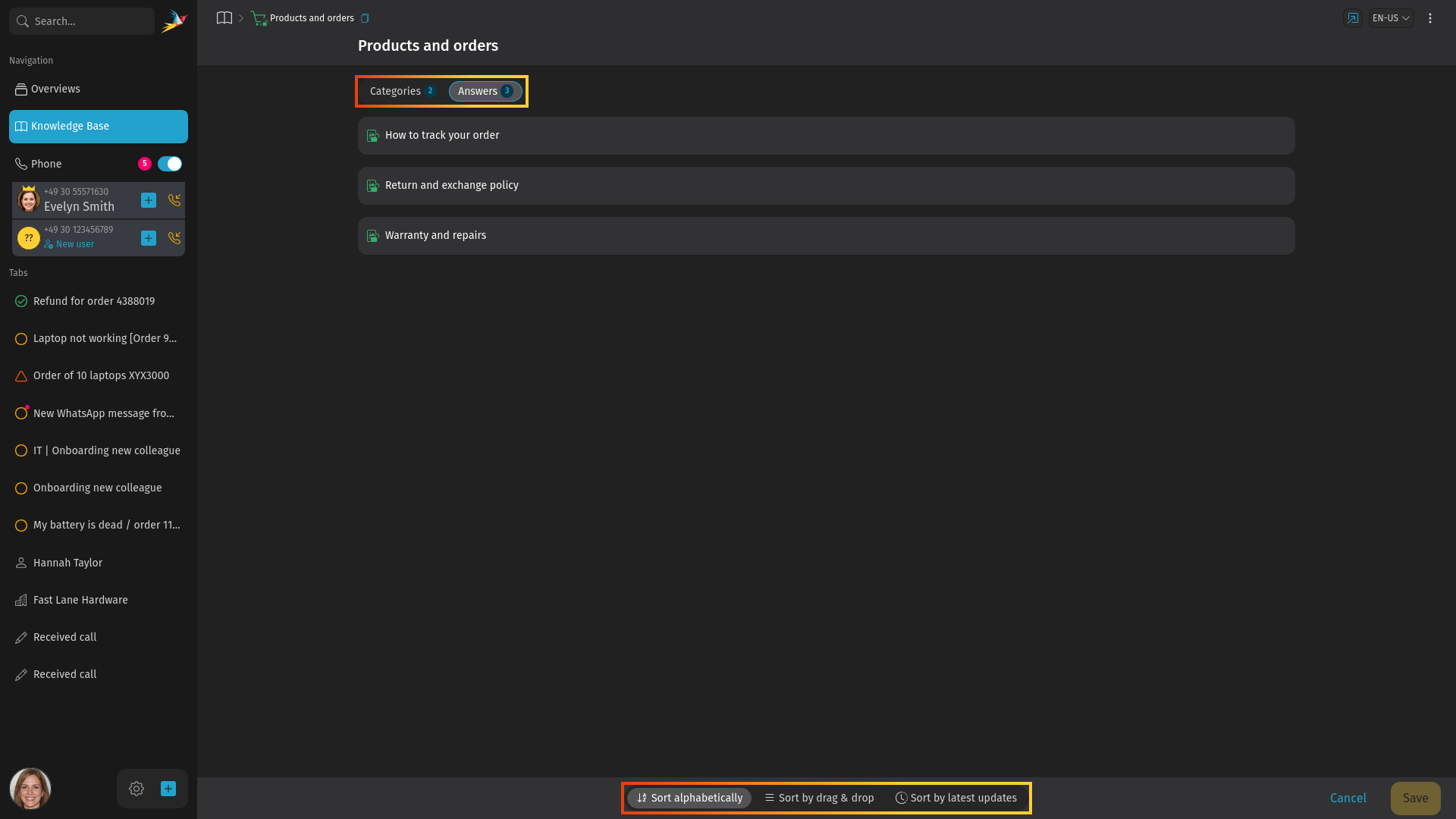
Categories and answers can be sorted per category. Open the menu in the top bar and select Sort content. The sorting bar appears at the bottom of the screen. Inside a category, switch between the Categories and Answers tabs to arrange the two lists separately; the knowledge base home sorts its top-level categories.
Three sorting modes are available for both answers and categories. Answers and categories can be sorted independently.
| Mode | Effect |
|---|---|
| Sort alphabetically | Entries ordered by title, regardless of manual changes |
| Sort by latest updates | Most recently updated entries first |
| Sort by drag & drop | Your hand-picked order; drag the entries into place |
For categories, latest updates means the category's own editorial changes like a renamed title or a new icon. Changes to the answers inside it do not affect the category's position. Answers are dated by their content edits.
Select the mode, arrange the entries if needed and save. The order applies for everyone who views the knowledge base.
Visibility and scheduling
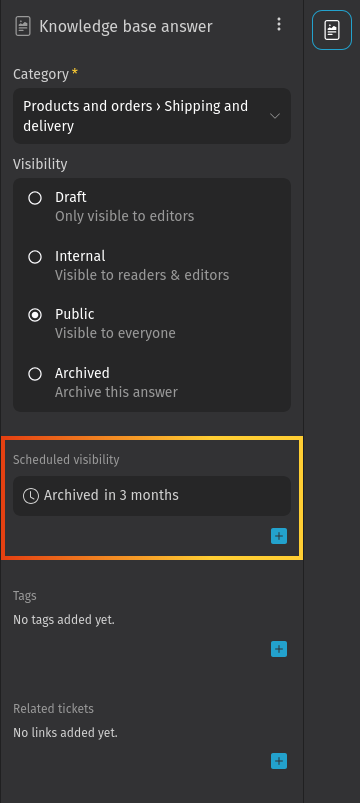
To change the visibility of an answer, edit the answer and select the new visibility in the answer sidebar; it takes effect immediately when you click Update. Use drafts to prepare content that is not ready for release, and archiving to retire outdated answers without deleting them.
Instead of changing the visibility manually, you can schedule visibility changes: an answer can be published automatically on a given date, or archived when it becomes obsolete. Scheduled changes are listed in the answer sidebar and only visible to editors. Create a new schedule by clicking the button in the Scheduled visibility section in the answer edit mode.
Schedules follow the order of the visibility states: an answer can become internal, then published, then archived, each with its own date. Drafts cannot be scheduled and a visibility state that the answer has already reached cannot be scheduled again.
Advanced
Save behavior
Next to the Create and Update buttons you can choose what happens when you save an answer: Stay on tab keeps the editor open, Close tab and open the answer returns to the saved answer, Close tab and open the category returns to its category and after creating an answer Close tab and add another answer opens a fresh form in the same category. Your choice is remembered for future saves.
The public help site
Customers reach published answers either in Zammad itself or on the public help site, depending on how your administrator configured the knowledge base. By default, the public site is available at /help on your Zammad host, for example https://zammad.example.com/help/en-us. The public site shows exactly the published content, organized by categories and works without a Zammad account.
To see the knowledge base as your customers see it, use the preview button described in the Browse section above. Unlike the public site, the preview also includes unpublished answers, so you can check drafts before releasing them.
Feeds
The knowledge base allows you to subscribe to the knowledge base or individual categories via Atom/RSS feed. This feature is optional and has to be enabled by your administrator.
For agents: go to the level of your knowledge base you want to subscribe to and select Set up RSS feed from the menu in the top bar, or from the menu in the answer sidebar when viewing an answer. In the flyout you can select between a feed for the whole knowledge base and a feed of the category you are currently in. The feed URL includes a personal token and the feed includes internal answers based on your permissions. Treat the feed URL like a password. If it leaks, renew the token, which invalidates the URLs handed out so far.
Customers on the public help site get their own feed of the published content only, without a token. They can download a feed file by clicking the feed icon in the footer bar.
Copy the title
The  button next to the title in the top bar copies the name of the category or answer you are viewing to the clipboard, ready to paste it into a ticket or a search.