

Отварање тикета
Када вам клијент пошаље поруку преко канала који подржава Zammad, тикет се аутоматски отвара (осим ако га Zammad препозна као наставак комуникације, тада се додаје као чланак постојећем тикету). Међутим, могући су случајеви када морате ручно отворити тикет. Примери:
- Клијент вас позове телефоном.
- Примите папирно писмо од клијента.
- Клијент посети вашу физичку локацију.
- Желите да проактивно обавестите клијента слањем поруке.
У оваквим ситуацијама морате ручно отворити нови тикет и кликнути на дугме при дну главне навигационе траке. Ово ће приказати екран за отварање тикета где можете унети све потребне информације.
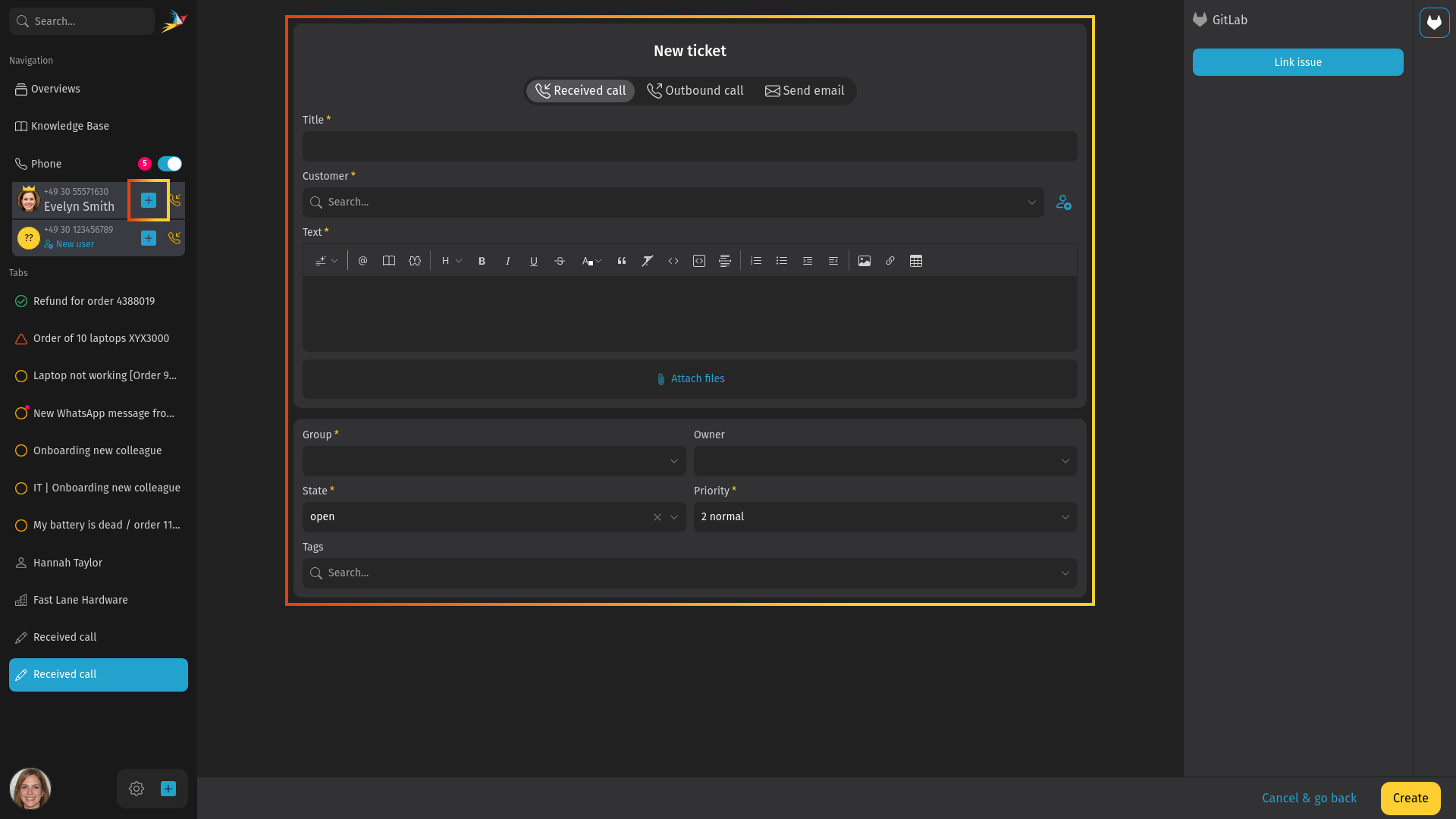
Избор типа
У екрану отварања тикета, можете одабрати различите врсте чланака:
- Примљен позив: за проблеме које је клијент пријавио телефоном.
- Одлазни позив: за проблеме које је пријавио оператер телефоном.
- Пошаљи имејл: за проблеме које је пријавио оператер путем имејл поруке.
Када одаберете Пошаљи имејл поруку, клијент ће примити имејл поруку са одговарајућим насловом и текстом као садржај.
Наслов
Ово је наслов тикета који се приказује на многим местима у Zammad-у. На пример, приказује се у табели прегледа. Такође се користи као предмет за имејл комуникацију. За имејл поруке аутоматски се додаје и идентификатор тикета (нпр. Ticket#901234 - Треба ми помоћ!).
Клијент
Унесите име или имејл адресу клијента за претрагу постојећих налога. Можете чак и претраживати организације и њихове чланове. Изаберите опцију са падајућег менија или додајте новог клијента кликом на дугме + Додај новог клијента са десне стране поља. Ово отвара дијалог где можете унети све релевантне информације о клијенту. Тикет може имати само једног клијента.
Након постављања клијента у дијалогу за отварање тикета, аутоматски се приказује бочна трака клијента. Можете видети додатне информације о клијенту, укључујући назнаку о тренутно отвореним тикетима клијента.
Текст
Ово је поље садржаја где се уносе тренутно познати детаљи проблема. За тип „Пошаљи имејл” ово ће бити садржај имејл поруке. Да сазнате више о уређивачу и његовим функцијама, погледајте документацију о уређивачу.
Атрибути тикета
Као што вероватно знате, постоје додатни атрибути тикета као што су група, приоритет и власник које можете подесити. Ако још нисте прочитали основе тикета, погледајте их да сазнате више.
Након што сте унели релевантне информације, на крају отворите тикет кликом на дугме Додај. Наставите са читањем како радити са постојећим тикетима.