

Zammad кориснички интерфејс
Кориснички интерфејс Zammad-а је дизајниран да пружи интуитивно искуство корисницима. Направљен је на основу концепта једноставности, јасноће и приступачности, и базиран је на основим принципима развоја софтвера који чине интерфејс самообјашњивим.
Различите функције се ослањају на основне модуларне компоненте које чине интерфејс конзистентним. Ове компоненте су објашњене у одељцима испод. У зависности од тренутног екрана, постоје интерактивне компоненте, као што су савети и контекстни описи. Користите их кад год је то неопходно.
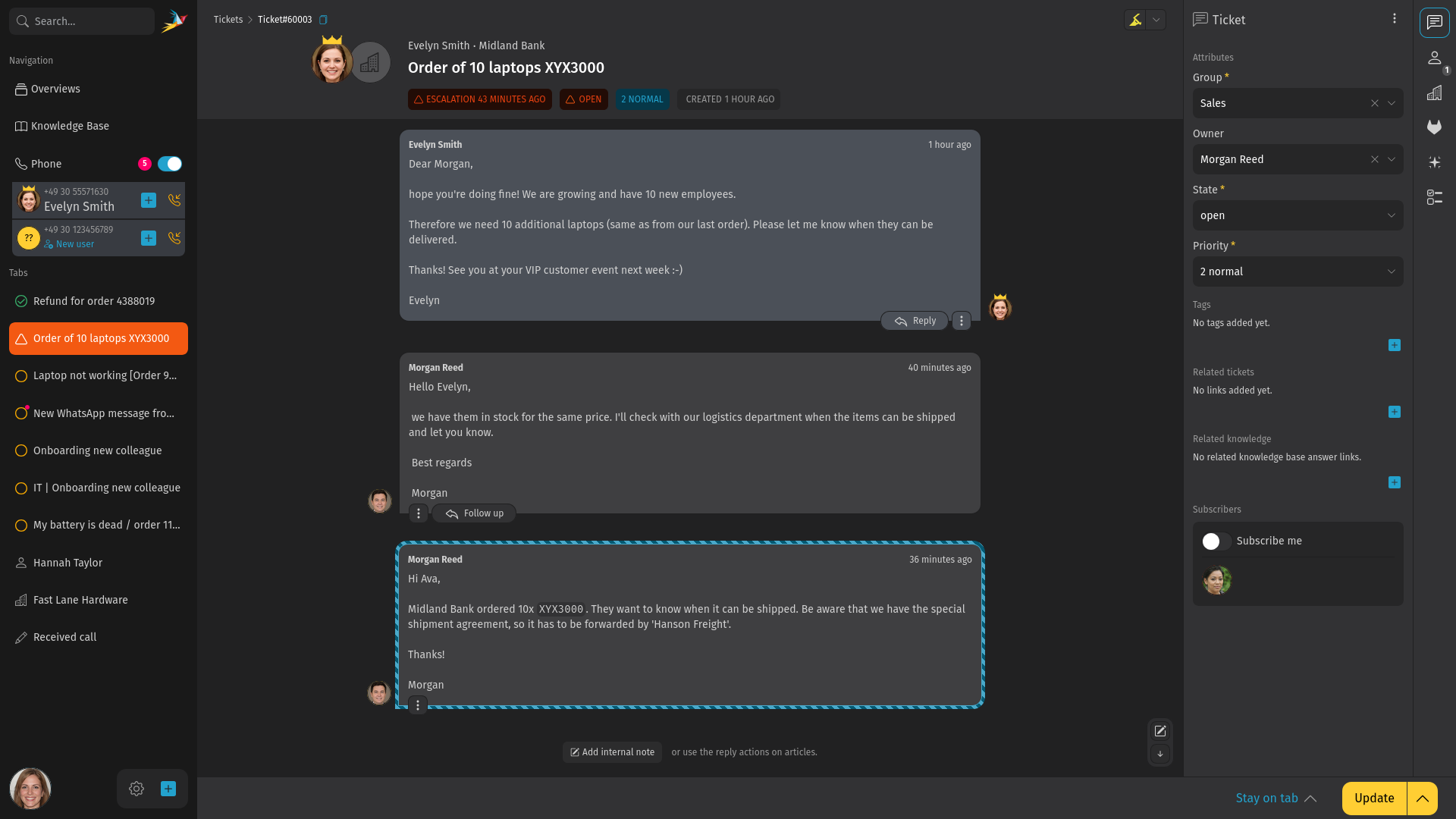
Главни елементи корисничког интерфејса
Снимак екрана изнад приказује детаљни приказ тикета у Zammad-у. Читајте даље за опис различитих главних елемената Zammad-а.
- Примарна навигација
- Ово је цела бочна трака са леве стране која укључује претрагу, обавештења, прегледе, радну траку, ваш аватар, дугме за отварање тикета и можда још тога, у зависности од вашег система (погледајте следећи одељак).
- Детаљни приказ тикета
- Овде обрађујете захтеве својих клијената. Појављује се у главном садржају у средини екрана када је прозор тикета изабран у навигационој бочној траци.
- Бочна трака
- Ово је бочна трака са десне стране у детаљном приказу тикета. Садржи језичке као што су клијенти и спискови задатака и приказује тренутно изабрани језичак.
Организација
Бочна трака примарне навигације је ваше централно место за приступ свим главним деловима Zammad-а. Можда нећете видети све њих јер неки зависе од подешавања вашег Zammad-а. Навигациона бочна трака је увек видљива. То значи да ако не знате где се налазите, увек можете да се вратите, на пример, на контролну таблу, своје прегледе или отворени тикет.
- Област претраге и обавештења
- Укључује претрагу у којој можете тражити кориснике, организације, тикете и у основи све информације доступне у Zammad-у. Поред претраге можете наћи Zammad логотип. У случају да постоји обавештење, приказује вам значку са бројем колико обавештења сте добили.
- Навигациони језичци
- Омогућавају вам да се пребаците на различите Zammad екране као што су контролна табла, прегледи, база знања или екран за телефон, у зависности од вашег система.
- Прозори радне траке
- У радној траци можете наћи прозоре за своје отворене тикете, кориснике, организације и детаљну претрагу. Дакле, ако прочитате о прозору корисника, то значи отворени прозор корисника у вашој бочној траци.
- Bottom bar
- Personal settings and create new ticket button. In case you have additional permissions, there might be a settings and a reporting button as well.
Zammad одмах чува ваш тренутни напредак у раду, тако да можете лако да се пребацујете између различитих области Zammad-а и не морате да се плашите губитка података, као што је још непослат одговор у тикету.
Трака са стране
Бочна трака са десне стране у детаљном приказу тикета садржи различите језичке као што су Тикет, Клијент и Списак задатака, у зависности од стања тикета, клијента и подешавања вашег Zammad-а. Између ових језичака се пребацујете кликом на одговарајућу иконицу на десној страни бочне траке.
- Језичак тикета
Овај језичак приказује информације о тикету као што су власник, група, приоритет и стање и омогућава вам да мењате те вредности. Додатно, следеће радње су доступне када кликнете на дугме у горњем делу:
- Историјат: приказује дијалог са историјатом тренутног тикета. Овде можете пронаћи када сау и које радње извршене над тикетом и од стране кога.
- Споји: спојите тикет са другим у случају да вас је клијент контактирао више пута у вези истог проблема.
- Измени клијента: поставите другог клијента тикета.
- Језичак клијента
- Прегледајте детаље клијента укључујући и референцу на остале тикете тог клијента. Овде такође можете променити клијента тикета кликом на дугме у горњем делу.
- Језичак организације
- Овај језичак се приказује само ако је клијент члан организације. Приказује детаље организације укључујући и све чланове. Кликом на дугме у горњем делу можете уредити организацију.