

Обрада тикета
Честитамо, пронашли сте пут до постојећег тикета! Хајде сада да видимо шта и како можете урадити са њим.
Уопштено, рад са постојећим тикетима значи праћење кореспонденције са клијентом у низу/разговору у прегледу детаља тикета. Сваки пут када отворите тикет, на левој страни навигационе траке појавиће се нова картица. Да бисте затворили картицу (у смислу да је уклоните из навигационе траке, а не да подесите статус тикета на затворен), само кликните на дугме у картици. Zammad аутоматски чува ваше измене у отвореним картицама тикета, без обзира да ли сте већ применили измене или сте само едитовали ствари и прешли негде другде. To значи да није проблем креирати нови тикет док едитујете постојећи. Једноставно се вратите на другу картицу.
За већину измена (осим тагова или промене наслова, на пример), потребно је експлицитно ажурирање тикета. Зато се уверите да кликнете дугме Ažuriraj на десној страни доње траке када сте задовољни својим изменама.
Измена атрибута тикета
Као што можда знате, постоје додатне карактеристике тикета као што су група, приоритет и власник које можете подесити. Ако још нисте прочитали тицкет-басицс, погледајте га да сазнате више.
Отворите нови тикет
Без обзира да ли додајете нови чланак од нуле или одговарате на постојећи чланак клијента, можете изабрати између различитих врста чланака:
- Напомена: Додајте подсетних за себе и друге оператере, поставите питање колеги помињањем корисника или унесите нове информације у тикет. Подразумевана видљивост је „интерна”, што значи да клијенти неће видети напомену.
- Позив: Забележите резиме телефонског позива који сте имали са клијентом.
- Имејл: Пошаљите имејл било коме у вези с тикетом. Назив тикета користи се као предмет имејла.
Да бисте одабрали други тип чланка, користите прекидач картице Канал и одаберите другачији тип. Кликните на прекидач браве да промените видљивост чланка. Чланци са унутрашњом видљивошћу приказују се испрекиданом плавом ивицом.
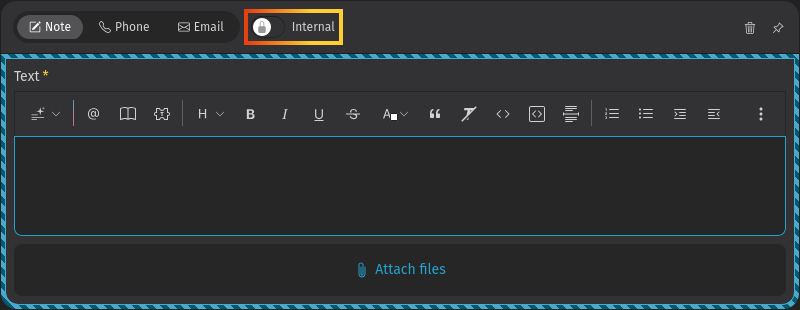
За писање и уређивање текста искористите моћне функције едитора. Можете користити траку са алаткама или пречице на тастатури да форматирате текст и покренете посебне функције. Због обима функција и њихове важности, више информација можете пронаћи на засебној страници за уређивање.
Сваки нови чланак појављује се на крају разговора, односно испод постојећих чланака. Да бисте видели детаљне информације о чланку, само кликните на постојећи чланак што отвара додатне метаподатке.
Можда се питате како да обришете чланке. Одговор је да можете обрисати само оне које сте сами креирали и који нису старији од 10 минута. Да бисте видели функцију Обриши чланак у мени-ју , чланци комуникационог типа (имејл поруке, позиви) морају прво бити промењени на „интерну” видљивост.
Додавање чланка од нуле
Испод последњег чланка кликните на дугме Add internal note (или Add reply ако сте клијент). Ово отвара уређивач са одабраним одговарајућим каналом и видљивошћу. Можете променити врсту или видљивост ако желите. Да бисте одговорили клијенту директно или проследили одређени чланак, употребите одговарајуће дугмиће под чланком. Прочитајте следећи одељак за више информација.

Одговори на чланак
Да бисте проследили чланак или одговорили на њега, употребите једно од дугмића за одговор под чланком или у менију. Понашање је слично понашању имејл клијента.
- Одговори: Омогућава одговор на чланак. Прималац ће бити аутоматски унешен. Одговор се шаље на истом каналу као и долазна порука. Ово вам омогућава да једноставно пошаљете одговор клијенту или лицу треће стране, уколико је укључено у конверзацију.
- Одговори свима: Исто као изнад, али понавља све адресе примаоца оригиналне поруке као примаоце вашег одговора. Доступно само на имејл каналима.
- Проследи: Омогућава прослеђивање оригиналне поруке лицима треће стране или било коме. Оригинална порука и прилози ће бити укључени у ваш нови чланак.
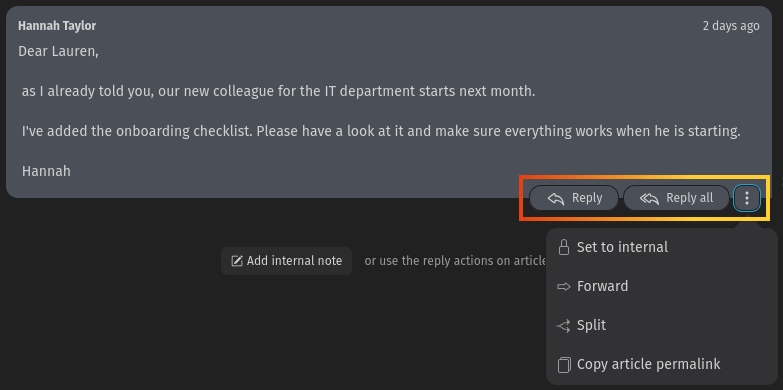
Zammad вам чак омогућава да цитирате текст из постојећег чланка. Ово је посебно корисно ако се одговор односи на различите делове оригиналне поруке или ако је текст доста дуг. Ова функција је ограничена на чланке комуникационог типа као што је имејл, где су дугмићи за одговор доступни. Да бисте цитирали текст, једноставно изаберите текст који желите да цитирате и употребите функцију Reply или Reply all. Ово додаје изабрани текст са временском ознаком у ваш уређивач чланка где на њега можете одговорити. Цитирање можете употребити и више пута да бисте цитирали различите делове текста. Само изаберите други део текста, кликните на исту радњу за одговор као и пре и он ће бити додат као још један цитат у ваш уређивач. Цитате можете разделити помоћу enter или shift + enter у уређивачу и искључити формат цитата за свој текст.
Ако тикет има дугу историју чланака, погледајте Рад са великим тикетима за олакшице које Zammad пружа.
По достигнутим подсетницима тикета
Када радите на тикетима са дугом историјом чланака - као што су дуги имејл разговори у којима морате да се враћате на претходне поруке - Zammad пружа две олакшице:
- Плутајућа трака радњи тикета у доњем десном углу листе чланака приказује брзе радње, у зависности од положаја при померању и стања тикета. Садржи дугмиће са иконицама за следеће радње:
- Додај интерну напомену (или Додај одговор ако сте клијент): отвара форму за одговор на чланак да бисте написали напомену.
- Помери на почетак и Помери на крај: скочите на врх или дно листе чланака. Ако постоје непрочитани чланци, дугме Помери на крај приказује значку и мења се на Помери на непрочитани чланак.
- Трака се појављује кад год је листа чланака виша од вашег екрана, како би кључне радње остале доступне.
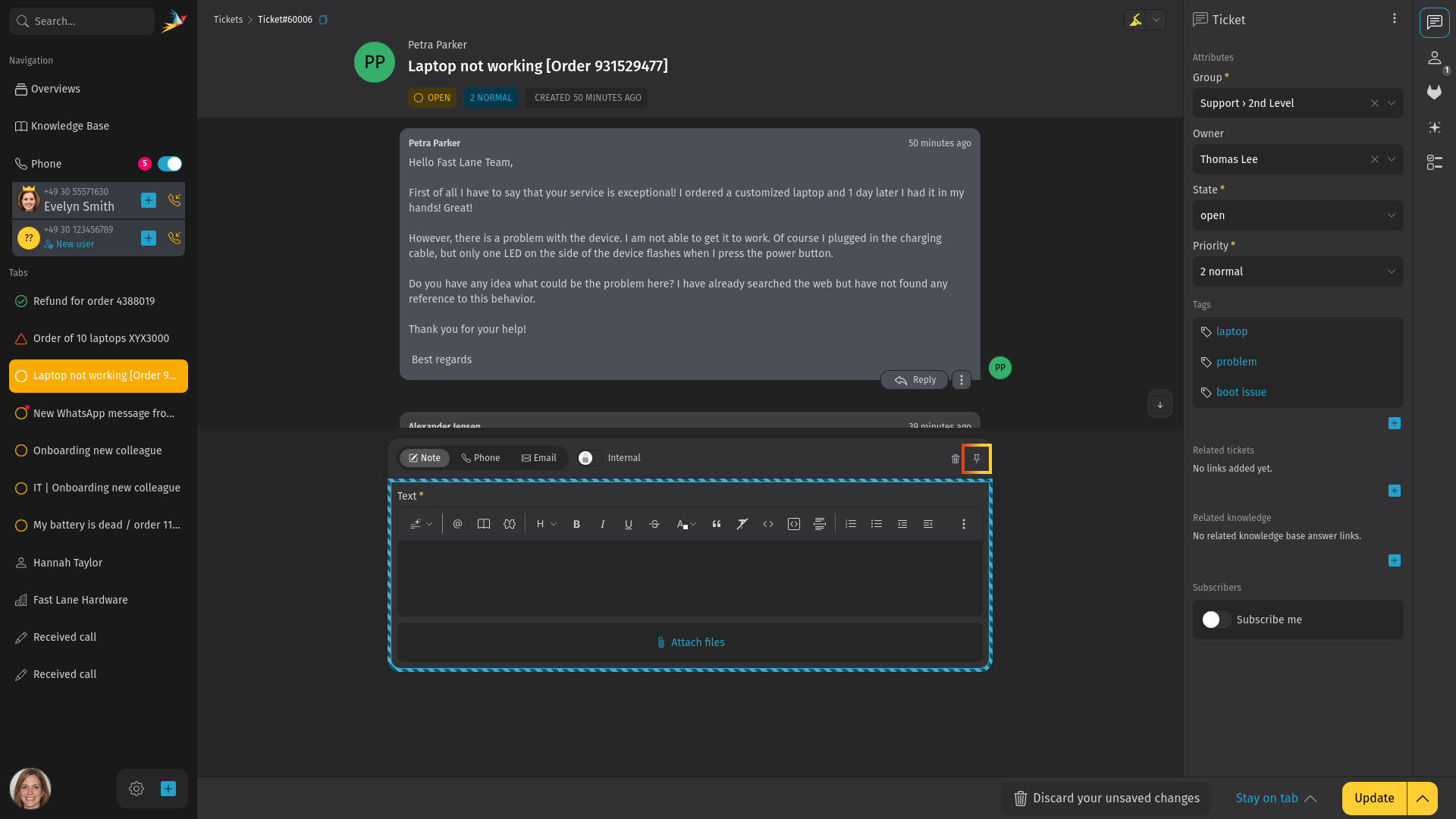
- A pinned reply form so the editor stays visible while you scroll through the articles. To pin or unpin the reply form, click the pin icon in the header of the article reply form. The pinned form sticks to the bottom of the ticket detail view. Resize the height by dragging the line on the top edge of the pinned reply form. The pin state and the panel size are saved in your browser.
Промена наслова тикета
Да бисте преименовали тикет, једноставно кликните на наслов у траци заглавља и почните да куцате. Овај наслов се користи као предмет у имејл комуникацији и приказује се на неколико места, као што су прегледи. Потврдите помоћу enter или кликните на дугме са десне стране.
Копирање броја тикета
Да бисте копирали број тикета укључујући и линк до тикета (нпр. да бисте га налепили у апликацију за ћаскање трећег лица), употребите  иконицу поред наслова тикета. Она копира комплетан број тикета са идентификатором тикета у вашу привремену меморију, нпр.
 Ticket#50071. Ако садржај лепите на место које може да обради HTML, укључује се и линк до тикета. Ако желите да налепите само број тикета, употребите обично лепљење преко ctrlshift v.
Али чекајте, за то постоји чак и пречица на тастатури! Једноставно притисните . у детаљном приказу тикета и број тикета ће бити копиран у вашу привремену меморију. Да бисте укључили и наслов тикета, притисните . два пута. Пример: Ticket#31004: Onboarding new colleague.
Симултана обрада тикета
Може се десити да два или више оператера отворе тикет у исто време. Да би се спречили конфликти при уређивању и да клијенти не би добијали противречне одговоре, Zammad вам приказује ко тренутно гледа или уређује тикет. Ову информацију можете наћи у доњој траци где су приказани аватари свих оператера.

У зависности од одговарајуће иконица и да ли је аватар сличица изблеђена, пронађите додатно значење:
- Аватар сличица: други оператер гледа тикет.
- Избледела аватар сличица: други оператер има отворен тикет али га тренутно не гледа активно.
- Аватар сличица са иконицом оловке: други оператер тренутно активно ради на овом тикету.
Постоји још иконица које представљају додатна стања других оператера (нпр. гледање тикета преко мобилног интерфејса или одсуство из канцеларије). Само пређите мишем преко њих ако нисте сигурни шта значе.
Радње тикета
Промените назив кликом на наслов или коришћењем падајућег менија у заглављу траке.
- Историја
- Погледајте свеобухватну листу освежавања тикета, која је извршио било који корисник, од његовог отварања. Корисно за проверу ко је шта урадио и када.
- Спајање
- Пренесите све поруке/напомене у други тикет. Корисно ако имате више од једног тикета о истом проблему клијента. За детаље погледајте Спајање тикета.
- Промена клијента
- Доделите тикет другом клијенту.
Сада знате основе и како се уопште ради са тикетима. Међутим, у Zammad-у постоји још много функција које могу бити веома корисне у вашем свакодневном раду. Читајте даље у Напредним функцијама да бисте сазнали више.