

Phone and caller log
Zammad can connect to your phone system and log every incoming and outgoing call. It uses this information to look up who is calling, to keep a call log and to help you start working on a call right away.
This feature is optional. Your admin has to connect Zammad to a telephony backend first. Once they do, a Phone entry appears in the navigation sidebar and stays there for as long as the backend is configured.
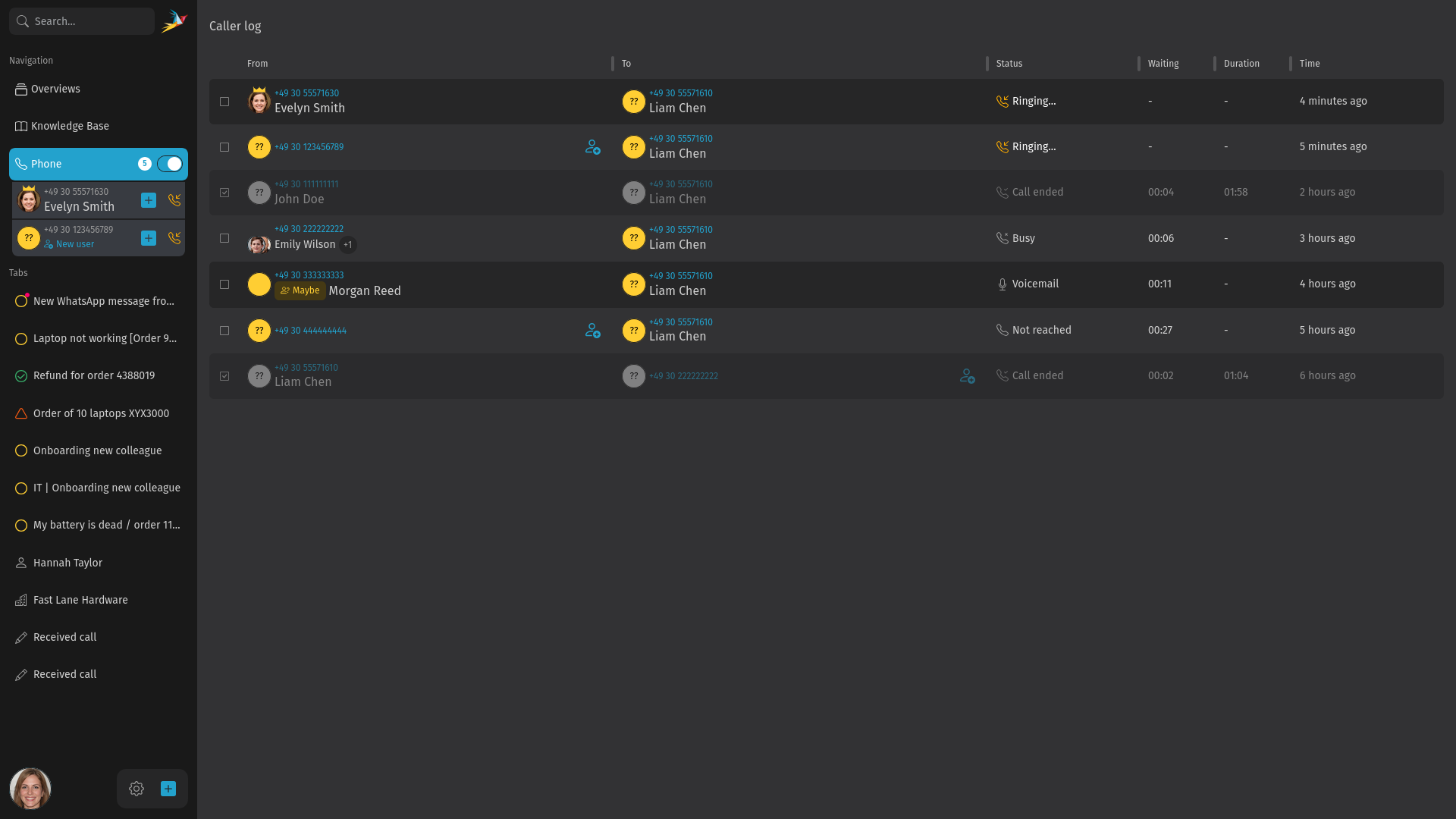
Call notifications
The toggle next to the Phone entry decides whether Zammad tells you about calls. It is switched off by default, so switch it on to see incoming calls.
When it's switched on, you get a counter of unhandled calls, see ringing calls in the sidebar and get the customer or ticket view after you answer a call. Switched off, none of that happens.

With the toggle switched off:
- the counter next to Phone stays hidden
- no ringing calls appear in the sidebar
- picking up a call does not open a customer or ticket view
- no browser notifications appear
The caller log itself is not affected by this toggle. You can still open it and read every call. The setting is personal, so switching it off only changes what your own browser shows. For the sidebar with the toggle switched on and a call coming in, see answer calls.
Answer calls
You answer a call in your phone software or on your headset, not in Zammad. Incoming calls show up in the navigation sidebar directly below the Phone entry, one row per call. Each row shows the caller's number and, where Zammad could identify them, their name.
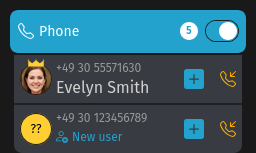
Next to a ringing call you find a button to create a new ticket for that call. For a caller Zammad does not know, a New user button creates the customer first, and Zammad then continues with a ticket create screen for that call.
Once your phone system reports that you answered, Zammad decides which view to open for you. You get the customer detail page if it detected a customer for the number and that customer has a ticket that was updated within your admin's configured activity window. In every other case you get a ticket create screen. The customer field is prefilled there, either with the detected customer or with the caller's number, and you can change it before you create the ticket.
TIP
Zammad opens that view only while you are looking at the Zammad browser tab. If you answer a call while the Zammad browser tab is inactive or with the browser in the background, Zammad gives you up to a minute to come back. Coming back to the tab in this time opens the view right away. After this period, Zammad does not open a view anymore. The call is still present in the caller log, so you can pick it up there.
Reading the caller log
The caller log lists every call Zammad recorded. Open it with the Phone entry in the navigation sidebar. The list is ordered by time, with the newest call first, and it fills in on its own while you are on the page. Scroll down to load more.
Each row shows:
- Handled (no column heading): whether the call was answered. A call that rang without anyone picking it up stays unchecked until you mark it yourself.
- From and To: the numbers involved, together with the name Zammad matched to them.
- Status: how the call ended, for example
Connected,Call ended,Busy,Voicemail,Not reachedorDoes not exist. A call that is still unanswered shows asRinging…. - Waiting and Duration: how long the call waited before it was answered and how long it lasted.
- Time: when the call happened.
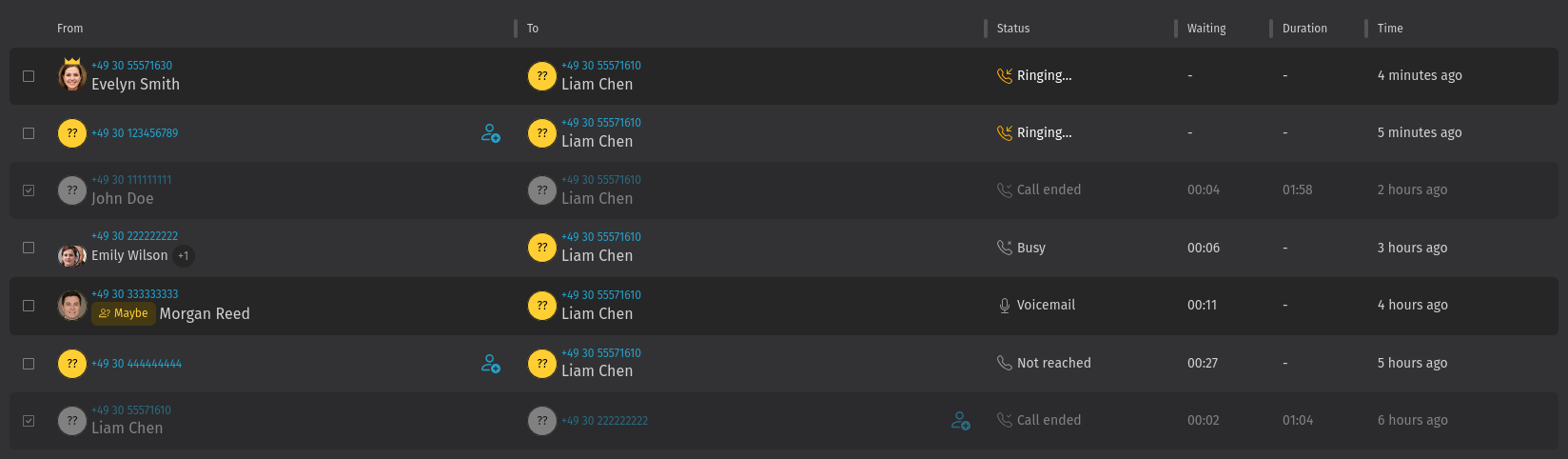
Handled calls stay in the list but are greyed out, so you can still tell them apart from the ones you have not processed yet.
INFO
The caller log shows all calls of the entire instance, not only yours. It holds the 1000 most recent calls at most. Calls leave the list when Zammad deletes them during the monthly system cleanup, which removes calls older than a year.
Marking calls as handled
Answering a call marks it as handled for you. You only need the checkbox for calls that stayed unanswered, for example one you called back later or one a colleague took. Clicking the checkbox in the Handled column puts a checkmark on the row, and clicking it again removes the mark. Marking a call only changes the display for you, it does not close anything.
The checkbox stays locked while the call is still ringing and younger than a minute, so that you do not mark away a call that is still in progress. Hover over the locked checkbox and it tells you why it cannot be used yet.
Caller matches
Zammad tries to identify the caller and show you their name next to the number. There are three cases:
- A known match: Zammad found the number in your customer data and shows the customer with their avatar.
- A Maybe badge: Zammad only guesses that the number belongs to this customer. It collects phone numbers from places like email signatures, so a guessed match is a hint rather than a certainty. Check the name before you write to the customer.
- An unknown caller: Zammad has no customer for the number. The number shows with a plain avatar instead.
If more than one customer matches a number, the row shows a badge with the number of additional matches, for example +2. Click it to see all matching customers.
Creating a customer from a call
For an unknown number you can create the customer without leaving the caller log. Use the New user button next to the call. Zammad opens the customer create screen with the phone number already filled in. Once you save the customer, Zammad continues to a ticket create screen for the call with that customer set.
An unknown number cannot be added to an existing customer this way. If the caller is a customer you already know, copy the number and paste it into their profile instead. Also note that existing caller log entries are not updated when you later change a customer's phone number.
Dialing a number
Phone numbers in the caller log and in customer details are links. Clicking one hands the number to your phone software, which then starts the call. This requires a softphone or CTI client that supports this action. Without one, clicking the number does nothing.