

Jednotné přihlašování pomocí Kerberosu jen vlastní server
Tento návod popisuje, jak nastavit jednotné přihlašování (SSO) pomocí Microsoft Active Directory.
Koncepční přehled
Jako každá jiná webová aplikace má i Zammad vlastní logiku pro registraci uživatelů, ukládání jejich hesel, jejich ověřování a správu jejich relací.
If your IT department keeps its own user identity store (like Active Directory), Zammad's SSO support allows you to leverage that existing auth system so that users with an account on your local intranet can log in to Zammad with a single click.
SSO only signs in users who already exist in Zammad; it never creates accounts. Use the LDAP integration (System > Integrations > LDAP) to create the Zammad accounts for your Active Directory users and keep them in sync.
TIP
Pokud takovou IT infrastrukturu nemáte, ale přesto chcete přihlašování jedním kliknutím, můžete použít alternativy jako GitHub, Google, Facebook a další.
Jak to funguje?
Zammad does not speak Kerberos itself. It provides the endpoint https://your.zammad.host/auth/sso and relies on the web server in front of it to authenticate the user before a request reaches that endpoint. The web server passes the user name along, Zammad looks up the user by their login and starts a session.
The user name can arrive in one of three forms, which Zammad checks in this order:
- the
REMOTE_USERvariable of the web server, only when the web server runs Zammad in its own process - the
Remote-Userrequest header, which Zammad sees asHTTP_REMOTE_USER - the
X-Forwarded-Userrequest header
Which one applies depends on your installation:
Package installation : Apache replaces Nginx on the Zammad host, authenticates /auth/sso and sets X-Forwarded-User.
- Docker stack
- The stack's own Nginx stays in place. An additional container in front of
/auth/ssoauthenticates, setsX-Forwarded-Userand forwards the request to Zammad's application server directly.
INFO
Počkat. SSO umožňuje přihlásit se jen pomocí uživatelského jména?
V principu ano.
Jak to může být v pořádku?
V tomto návodu nakonfigurujeme webový server (Apache) tak, aby zachytával všechny požadavky na koncový bod /auth/sso. Místo toho, aby je předal Zammadu, zahájí Apache třístranný proces přihlášení (ověřování Kerberos) mezi sebou, uživatelem a serverem Active Directory.
Pokud Active Directory uživatele nebo jeho heslo nerozpozná, Zammad požadavek vůbec neuvidí a relace se nevytvoří.
Co to všechno znamená?
Znamená to, že SSO můžete nastavit mnoha způsoby – nemusíte se řídit tímto návodem ani používat Active Directory či Kerberos. Pokud ale nevíte, co děláte, skončíte s obrovskou bezpečnostní dírou.
Začínáme
TIP
Nemáte čas se tím zabývat sami?
Postaráme se o to. Naši odborníci nabízejí workshopy na míru, díky kterým váš tým rychle a s jistotou zvládne nasazení. Stačí nám napsat!
Budete potřebovat:
- prostředí Microsoft Active Directory s
- přístupem root
- podporou 256bitového šifrování AES
- a Zammad installation with a fully-qualified domain name (FQDN), either
- a package installation with root access on the host, or
- the Docker stack behind a reverse proxy that terminates TLS and routes by path, such as the Nginx Proxy Manager scenario
- a Zammad account for every user who signs in via SSO, whose login is the user's Active Directory user name without the realm (
sAMAccountName). The LDAP integration in System > Integrations > LDAP creates these accounts and mapssAMAccountNameto the login by default. - určitou znalost správy systémů (např. konfigurace Apache)
INFO
Zammad matches the user name against the login only, ignoring case. An account whose email address matches but whose login differs is not found.
Krok 1: Nakonfigurujte Active Directory
Ve schématu ověřování Kerberos musí ověřovací server (Active Directory) udržovat sdílená tajemství se službou (Zammad). Aby to bylo možné, musíme pro Zammad v Active Directory zaregistrovat hlavní název služby (SPN).
INFO
Tento postup byl ověřen ve Windows Serveru 2016.
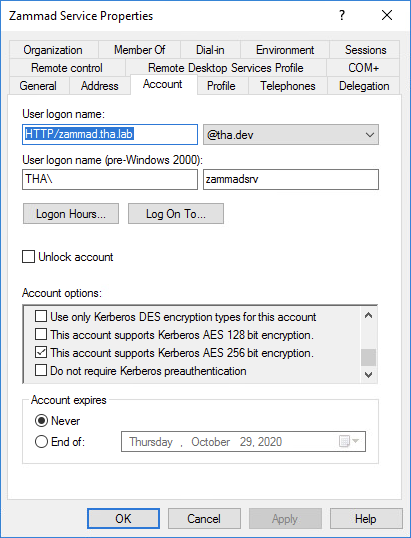
1a. Vytvořte účet služby
Pokud už účet služby máte, můžete použít stávající. Administrátorská oprávnění nejsou potřeba, postačí běžný uživatelský účet.
1b. Obnovte heslo
Po zapnutí volby "This account supports Kerberos AES 256 bit encryption" (Tento účet podporuje 256bitové šifrování Kerberos AES) obnovte heslo účtu služby.
Without this option, the keytab carries only RC4 keys, which current Kerberos libraries reject. The Docker SSO container is one of them.
1c. Zaregistrujte SPN pro Zammad
V níže uvedených příkazech nahraďte následující zástupné hodnoty:
<zammad-host>: FQDN Zammadu<service-acct>: přihlašovací jméno účtu služby<password>: heslo účtu služby (volba/pass *se ukázala jako nefunkční)<domain>: doména Windows<master-domain-controller>: IP/FQDN hlavního řadiče domény
Níže uvedené příkazy si vyžádají heslo uživatele:
setspn -s HTTP/<zammad-host> <service-acct>ktpass /princ HTTP/<zammad-host>@<DOMAIN> \
/mapuser <service-acct> \
/crypto AES256-SHA1 \
/ptype KRB5_NT_PRINCIPAL \
/pass <password> -SetPass +DumpSalt \
/target <master-domain-controller> \
/out zammad.keytab1d. Poznamenejte si tajný klíč a číslo verze
This step is for the package installation only. The Docker stack uses the zammad.keytab file written by the command above as it is.
The output of the command above contains important data for Step 2f below:
Using legacy password setting method
Failed to set property 'servicePrincipalName' to 'HTTP/<zammad-host>' on Dn 'CN=Zammad Service,DC=<domain>,DC=<tld>': 0x13.
WARNING: Unable to set SPN mapping data.
If <service-acct> already has an SPN mapping installed for HTTP/<zammad-host>, this is no cause for concern.
Building salt with principalname HTTP/<zammad-host> and domain <domain> (encryption type 18)...
Hashing password with salt "<domain><service-acct>".
Key created.
Output keytab to zammad.keytab:
Keytab version: 0x502
keysize 67 <service-acct>@<domain> ptype 1 (KRB5_NT_PRINCIPAL) vno 3 etype 0x12 (AES256-SHA1) keylength 32 (0x5ee827c30c736dd4095c9cbe146eabc216415b1ddb134db6aabd61be8fdf7fb1)
Na posledním řádku si poznamenejte:
- tajný klíč v závorkách na konci (0x5ee827...)
- číslo verze tajného klíče uvedené za
vno(3)
Step 2: Set up the Kerberos endpoint
Next, requests to /auth/sso must pass a web server that performs the Kerberos authentication before they reach Zammad. How you set this up depends on your installation: follow Package installation or Docker installation.
Instalace z balíčku
Dále je třeba nakonfigurovat hostitele Zammadu tak, aby podporoval Kerberos (a přijímal ověřovací údaje poskytnuté serverem Active Directory).
Ve většině případů byste museli NGINX znovu zkompilovat ze zdrojového kódu s dalším modulem, aby podporoval Kerberos. Abychom se tomu vyhnuli, použijeme Apache, který podporu Kerberosu nabízí prostřednictvím zásuvného modulu.
INFO
Všechny příkazy v této části je nutné spouštět jako root (nebo pomocí sudo).
2a. Vypněte NGINX
WARNING
Tím bude vaše instance Zammadu offline, dokud nebude Apache plně nakonfigurován a spuštěn.
Vypněte Nginx:
sudo systemctl stop nginxZajistěte, aby zůstal vypnutý i po restartu:
sudo systemctl disable nginxPokud chcete minimalizovat výpadek, můžete tento krok nechat až na konec. Mějte ale na paměti, že Apache se nespustí, pokud port, na kterém chce naslouchat, používá NGINX.
Pokud z jakéhokoli důvodu nemůžete tento návod dokončit, jednoduše vypněte Apache a obnovte NGINX:
Details
sudo systemctl stop apache2sudo systemctl disable apache2sudo systemctl enable nginxsudo systemctl start nginx2b. Předběžně nakonfigurujte Apache
Tato dokumentace předpokládá již funkční konfiguraci Apache. Než budete pokračovat, projděte si návod ke konfiguraci webového serveru.
2c. Nainstalujte další závislosti pro Apache
sudo apt updatesudo apt install krb5-user libapache2-mod-auth-gssapi2d. Zapněte moduly Apache
SSO vyžaduje moduly, které nejsou ve výchozím stavu zapnuté. Obvykle k tomu můžete použít a2enmod.
a2enmod auth_gssapi rewritesudo systemctl restart apache22e. Nakonfigurujte Kerberos
Konfigurací realmu Kerberos sdělíte serveru Zammadu, jak se spojit s řadičem domény (serverem Active Directory).
V níže uvedené ukázkové konfiguraci nahraďte následující zástupné hodnoty:
<domain>: doména Windows<domain-controller>: IP/FQDN řadiče (řadičů) domény<master-domain-controller>: IP/FQDN hlavního řadiče domény (nesmí být jen pro čtení, ale může být stejný jako<domain-controller>)
# /etc/krb5.conf

[libdefaults]
   default_realm = <DOMAIN>

   default_tkt_enctypes = aes256-cts-hmac-sha1-96
   default_tgs_enctypes = aes256-cts-hmac-sha1-96
   permitted_enctypes = aes256-cts-hmac-sha1-96

   kdc_timesync = 1
   ccache_type = 4
   forwardable = false
   proxiable = false
   fcc-mit-ticketflags = false

[realms]
         # multiple KDCs ok (one `kdc = ...` definition per line)
         <DOMAIN> = {
                  kdc = <domain-controller>
                  admin_server = <master-domain-controller>
                  default_domain = <domain>

                  # below is only for GSSAPI
                  auth_to_local = RULE:[1:$1@$0](.*@<domain>)s/@<domain>$//
                  auth_to_local = DEFAULT
         }

[domain_realm]
         .<domain> = <DOMAIN>
         <domain> = <DOMAIN>
2f. Vygenerujte keytab
Apache potřebuje Kerberos keytab (tabulku klíčů), aby mohl spravovat sdílená tajemství s řadičem domény.
V níže uvedených příkazech nahraďte následující zástupné hodnoty:
<zammad-host>: FQDN Zammadu<domain>: doména Windows<secret-key>: tajný klíč (vynechte úvodní0x)<vno>: číslo verze tajného klíče
The secret key and version number were found in Step 1: Configure active directory above.
Spusťte ktutil:
ktutilPřidejte keytab:
ktutil: addent -key -p HTTP/<zammad-host>@<DOMAIN> -k <vno> -e aes256-cts
Key for HTTP/<zammad-host>@<domain> (hex): <secret-key>
Ověřte, že byl záznam úspěšně přidán:
ktutil: list
slot KVNO Principal
---- ---- ---------------------------------------------------------------
   1    3 HTTP/<zammad-host>@<DOMAIN>
Zapište keytab na disk:
ktutil: wkt /root/zammad.keytabUkončete ktutil:
ktutil: quitPoté přesuňte keytab do konfiguračního adresáře Apache a nastavte příslušná oprávnění:
sudo mv /root/zammad.keytab /etc/apache2/sudo chown root:www-data /etc/apache2/zammad.keytabsudo chmod 640 /etc/apache2/zammad.keytab2g. Nakonfigurujte Apache
Na konec konfiguračního souboru virtuálního hostitele přidejte následující direktivu, která vytvoří koncový bod Kerberos SSO na /auth/sso:
V níže uvedeném příkazu nahraďte následující zástupné hodnoty:
<zammad-host>: FQDN Zammadu<domain>: doména Windows
# /etc/apache2/sites-available/zammad.conf

<LocationMatch "/auth/sso">
   SSLRequireSSL
   AuthType GSSAPI
   AuthName "Your Zammad"
   GssapiBasicAuth On
   GssapiCredStore keytab:/etc/apache2/zammad.keytab
   GssapiLocalName On
   require valid-user

   # inbound client values never survive
   RequestHeader unset Remote-User
   RequestHeader unset X-Forwarded-User
   RewriteEngine On
   RewriteCond %{LA-U:REMOTE_USER} (.+)
   RewriteRule . - [E=RU:%1,NS]
   RequestHeader set X-Forwarded-User "%{RU}e" env=RU
</LocationMatch>
2h. Restart Apache to apply changes
sudo systemctl restart apache2Instalace v Dockeru
The Docker stack runs its web server inside the zammad-nginx image, so you cannot swap it for Apache as in the package installation. Instead, a small additional container does the Kerberos part: the reverse proxy in front of the stack sends only /auth/sso through it, everything else goes straight to zammad-nginx as before. Zammad and the stack's compose files stay as they are. The SSO container is part of your infrastructure, like the reverse proxy that terminates TLS.
browser ──► reverse proxy (TLS)
              ├─ /auth/sso ──► zammad-sso ──(Kerberos ok, sets X-Forwarded-User)──► zammad-railsserver
              └─ everything else ──────────────────────────────────────────────► zammad-nginx ──► zammad-railsserver
The SSO container forwards /auth/sso to Zammad's application server directly and passes the user name in the X-Forwarded-User header, as the package installation does. One hop fewer, and zammad-nginx is not involved in the login.
INFO
Your reverse proxy can do Kerberos itself?
Then you don't need the SSO container. Configure the proxy to authenticate /auth/sso via Negotiate, put the user name without the realm into the X-Forwarded-User header, drop Remote-User and X-Forwarded-User sent by clients on every path, send /auth/sso to zammad-railsserver:3000, pass all other requests unchanged, and continue with Trusted proxies.
Budete potřebovat:
- the stack behind a reverse proxy that routes by path. This guide uses the Nginx Proxy Manager scenario. Any proxy with path-based routing works the same way. If your proxy runs in a separate compose project, use the external network scenario and add that network to the
zammad-ssoservice in the override file as well, so that the proxy can reach it. - the
zammad.keytabfile written byktpassin 1c. Register a SPN for Zammad, copied to the Docker host. Thektutilstep of the package installation is not needed.
Files
The SSO container consists of the following files next to the stack's docker-compose.yml:
docker-compose.override.yml   adds the SSO container to the stack
zammad-sso/                   build context of the SSO image
  Dockerfile
  apache2-foreground
  zammad-sso.conf
local/zammad-sso/             files mounted into the container
  krb5.conf
  zammad.keytab
Keep the keytab out of the build context: Docker reads every file in zammad-sso/ when it builds the image, and a keytab that only the container's user may read makes the build fail. The container runs as www-data with user ID 33, so give the keytab to that user and make it readable for nobody else. Do this from a throwaway container, which works with a rootful and a rootless Docker daemon. Run it from the stack's directory:
docker run --rm -v "$PWD/local/zammad-sso:/k" alpine \
    sh -c 'chown 33 /k/zammad.keytab && chmod 0400 /k/zammad.keytab'
Afterwards, your own user on the host can no longer read the keytab. To replace it, delete it, copy the new one in its place and run the command again.
INFO
With a rootless Docker daemon, user ID 33 inside a container is a different user ID on the host. chown 33 on the host therefore fails or gives the keytab to the wrong user, and the container cannot read it.
WARNING
Don't solve the permission problem by making the keytab readable for everyone (mode 0644): anyone who can read it can act as the Zammad service towards Active Directory.
zammad-sso/Dockerfile builds Apache with mod_auth_gssapi from the Debian packages and runs it unprivileged:
FROM debian:trixie-slim

RUN apt-get update && \
    apt-get install -y --no-install-recommends apache2 libapache2-mod-auth-gssapi krb5-user curl && \
    rm -rf /var/lib/apt/lists/*

RUN a2enmod auth_gssapi proxy proxy_http headers rewrite && \
    a2dissite 000-default

COPY zammad-sso.conf /etc/apache2/sites-available/zammad-sso.conf
RUN a2ensite zammad-sso

# Debian's envvars assigns the APACHE_* variables unconditionally. Turn every
# "export VAR=value" into ": ${VAR:=value}; export VAR", so that values from the
# environment win, the same way the official php:apache image does it.
RUN sed -ri 's/^export ([^=]+)=(.*)$/: ${\1:=\2}\nexport \1/' /etc/apache2/envvars

# Run unprivileged: listen on 8080, pid/lock/logs under /tmp.
ENV APACHE_RUN_DIR=/tmp/apache2 \
    APACHE_PID_FILE=/tmp/apache2/apache2.pid \
    APACHE_LOCK_DIR=/tmp/apache2 \
    APACHE_LOG_DIR=/tmp/apache2

RUN echo 'Listen 8080' > /etc/apache2/ports.conf && \
    { echo 'ServerName zammad-sso'; \
      echo 'ErrorLog /proc/self/fd/2'; \
      echo 'CustomLog /proc/self/fd/1 combined'; } > /etc/apache2/conf-available/zz-docker.conf && \
    a2enconf zz-docker

COPY apache2-foreground /usr/local/bin/apache2-foreground

USER www-data
EXPOSE 8080

# Healthy = the keytab is readable and apache answers /auth/sso with the Negotiate
# challenge (401). A keytab with a wrong key is not detected here: apache still
# answers 401 and logs a GSS ERROR for every sign-in attempt.
HEALTHCHECK --interval=30s --timeout=5s --start-period=10s \
  CMD klist -k /etc/apache2/zammad.keytab >/dev/null 2>&1 && \
      [ "$(curl -s -o /dev/null -w '%{http_code}' http://localhost:8080/auth/sso)" = "401" ] || exit 1

CMD ["apache2-foreground"]
zammad-sso/apache2-foreground starts Apache as the container's main process. Make it executable with chmod +x:
#!/bin/sh
# Start apache directly instead of through apache2ctl, so that it runs as PID 1
# and receives the container's signals. The run directory is created on every
# start and a stale pid file from a previous run is removed.
set -e
. /etc/apache2/envvars
mkdir -p "$APACHE_RUN_DIR" "$APACHE_LOCK_DIR" "$APACHE_LOG_DIR"
rm -f "$APACHE_PID_FILE"
exec apache2 -DFOREGROUND "$@"
zammad-sso/zammad-sso.conf authenticates /auth/sso and forwards it to the stack:
<VirtualHost *:8080>
  <Location "/auth/sso">
    AuthType GSSAPI
    AuthName "Zammad SSO"
    GssapiCredStore keytab:/etc/apache2/zammad.keytab
    GssapiAllowedMech krb5
    # strips @REALM
    GssapiLocalName On
    Require valid-user

    # inbound client values never survive
    RequestHeader unset Remote-User
    RequestHeader unset X-Forwarded-User
    RewriteEngine On
    RewriteCond %{LA-U:REMOTE_USER} (.+)
    RewriteRule . - [E=RU:%1,NS]
    RequestHeader set X-Forwarded-User "%{RU}e" env=RU
    # don't leak the Negotiate token downstream
    RequestHeader unset Authorization

    ProxyPreserveHost On
    ProxyPass        http://zammad-railsserver:3000/auth/sso
    ProxyPassReverse http://zammad-railsserver:3000/auth/sso
  </Location>
</VirtualHost>
Add the zammad-sso service to your docker-compose.override.yml. If the stack has no override file yet, create it from the shipped template, see Customize the stack locally:
---
services:
  zammad-sso:
    build: ./zammad-sso
    restart: ${RESTART:-always}
    volumes:
      - ./local/zammad-sso/krb5.conf:/etc/krb5.conf:ro
      - ./local/zammad-sso/zammad.keytab:/etc/apache2/zammad.keytab:ro
local/zammad-sso/krb5.conf tells the container how to reach your domain controller. Replace the placeholders as described in 2e. Configure Kerberos:
[libdefaults]
    default_realm = <DOMAIN>
    dns_lookup_realm = false
    dns_lookup_kdc = false
    rdns = false

[realms]
    <DOMAIN> = {
        kdc = <domain-controller>
        admin_server = <master-domain-controller>
    }

[domain_realm]
    .<domain> = <DOMAIN>
    <domain> = <DOMAIN>
Add the override file and the reverse proxy as trusted proxy to your .env:
COMPOSE_FILE=docker-compose.yml:scenarios/add-nginx-proxy-manager.yml:docker-compose.override.yml
ZAMMAD_FQDN=<zammad-host>
ZAMMAD_HTTP_TYPE=https
RAILS_TRUSTED_PROXIES=nginx-proxy-manager
Then build and start the stack:
docker compose up -d --buildThe zammad-sso container reports healthy once the keytab is readable and Apache answers /auth/sso with the Kerberos challenge. If it stays unhealthy, either the keytab is missing or not readable by user ID 33 inside the container, or Apache doesn't answer /auth/sso with the expected 401.
Configure the reverse proxy
In Nginx Proxy Manager:
- Create a proxy host for your Zammad FQDN with scheme
http, forward hostzammad-nginxand port8080. Enable Websockets Support and set up the certificate on the SSL tab. - Add a Custom Location for
/auth/ssowith schemehttp, forward hostzammad-ssoand port8080.
Do not rely on the Advanced field to strip headers: proxy_set_header lines entered there do not reach the generated locations and would only give a false sense of security. Client-sent headers are removed in the SSO container.
With Traefik, the equivalent is a router that points at the SSO container, with a higher priority than the router for the rest of the stack and the rule:
Host(`<zammad-host>`) && PathPrefix(`/auth/sso`)Trusted proxies
Zammad has to trust the reverse proxy, so that it takes the address of the user's browser as the client instead of a container address. That is what RAILS_TRUSTED_PROXIES in .env does. With another proxy, name that one instead, see environment variables. The SSO container does not need to be listed: Zammad takes the address the reverse proxy forwarded and falls back to the sending container only when no untrusted forwarded address is left.
The Trusted SSO Proxy IPs setting in Step 3 then holds the address ranges from which users may sign in via SSO, typically your intranet. A changed value applies after at most 15 seconds. Without the reverse proxy in RAILS_TRUSTED_PROXIES, Zammad takes a container's address as the client, and the setting would have to hold the stack's network range, which admits every container.
WARNING
The setting guards the way in through the reverse proxy only. Inside the stack's network, zammad-railsserver accepts an X-Forwarded-User header from any container, and a container can send the X-Forwarded-For header the check relies on along with it. Keep zammad-railsserver reachable only from the stack's own containers and the SSO container, and set the trusted IPs before you enable SSO.
Portainer
Without shell access to the Docker host, you can build and run the same container through the Portainer UI:
Under Images, choose Build a new image, upload a tarball that contains the three files of
zammad-sso/at its top level (not the directory itself) and tag the image, e.g.zammad-sso:local. The image contains no keytab, so it holds no secret.Under Volumes, choose Add volume and create
zammad-sso-secrets.Put
zammad.keytabandkrb5.confinto the volume. Portainer Business has a volume browser with upload. In the Community Edition, deploy a throwaway container (alpinewith the commandsleep infinity) that mounts the volume at/secrets, paste the files through its console (for example viabase64 -d), set owner33and mode0400on the keytab, and remove the container again.Under Stacks, choose Add stack and deploy the SSO container with the web editor as a stack of its own that joins the Zammad stack's network. Replace
<zammad-stack>with the name of your Zammad stack in Portainer.yamlservices: zammad-sso: image: zammad-sso:local restart: always volumes: - type: volume source: zammad-sso-secrets target: /etc/krb5.conf read_only: true volume: subpath: krb5.conf - type: volume source: zammad-sso-secrets target: /etc/apache2/zammad.keytab read_only: true volume: subpath: zammad.keytab networks: - zammad networks: zammad: external: true name: <zammad-stack>_default volumes: zammad-sso-secrets: external: true
The reverse proxy is configured as above and has to be a trusted proxy of the Zammad stack, see Trusted proxies.
Krok 3: Zapněte SSO v Zammadu
Next, enable "Authentication via SSO" in Zammad's admin interface under Settings > Security > Third-party Applications. Make sure to configure the trusted SSO proxy IPs for production systems. For the Docker stack, Trusted proxies explains which addresses belong there.
TIP
Ve starších verzích Zammadu se přihlaste na adrese https://your.zammad.host/auth/sso.
Krok 4: Nakonfigurujte klientský systém (pouze Windows)
Pro plnohodnotné SSO (tj. přihlášení jedním kliknutím bez hesla) musí uživatelé Zammadu:
- být v místním intranetu serveru Active Directory a
- upravit svá síťová nastavení tak, aby byl hostitel Zammadu považován za server místního intranetu.
Bez tohoto kroku musí uživatelé při SSO zadávat své přihlašovací údaje k Active Directory.
TIP
Toto nastavení lze centrálně spravovat v celém intranetu pomocí objektu zásad skupiny (GPO).
- Přidejte FQDN Zammadu v Internet Options v části Security > Local Intranet > Sites > Advanced.
- Zapněte volbu "Require server verification (https:) for all sites in this zone".
- V části Security level for this zone > Custom level... > Settings > User Authentication > Logon vyberte "Automatic logon only in Intranet Zone".
Řešení problémů
- Jsou všechny relevantní FQDN/názvy hostitelů dostupné ze serverů Active Directory a Zammadu (a to i vzájemně mezi sebou)?
- Liší se systémové hodiny serverů Active Directory a Zammadu nejvýše o pět minut? Kerberos je protokol citlivý na čas!
Errors in Zammad
"User <name> could not be found"
Kerberos authentication succeeded, but Zammad has no user whose login is <name>. SSO does not create accounts. Make sure the user exists in Zammad and that their login matches their Active Directory user name, e.g. by running the LDAP integration with sAMAccountName mapped to the login.
The LDAP integration skips Active Directory users whose first name, last name and email address are all empty, so these users never get an account in Zammad. Fill in at least one of these attributes in Active Directory.
Chyby v logech Apache
TIP
Zkuste dočasně zvýšit úroveň logování Apache.
Přidejte LogLevel debug do konfigurace virtuálního hostitele a poté službu restartujte, aby se změny projevily.
An unsupported mechanism was requested
Má účet služby v Active Directory zapnuté 256bitové šifrování Kerberos AES?
Pokud váš server z nějakého důvodu nepodporuje 256bitové šifrování AES, najdete na LDAP Wiki další informace o typech šifrování Kerberos.
Failed to verify krb5 credentials: Key version is not available
Did you use the exact version number (vno) provided by ktpass when generating your keytab?
Pro jistotu ho zkuste vygenerovat znovu.
Unspecified GSS failure. Minor code may provide more information (, no key table entry found for HTTP/FQDN@DOMAIN)
Does the service name you provided to setspn exactly match the one you used when generating your keytab?
Pro jistotu ho zkuste vygenerovat znovu.
No key table entry found for HTTP/FQDN@DOMAIN
Odpovídá nastavení KrbServiceName v konfiguraci virtuálního hostitele přesně názvu služby, který jste zadali do setspn?
Toto nastavení rozlišuje velká a malá písmena.
Warning: Received token seems to be NTLM, which isn't supported by the Kerberos module. Check your IE configuration
Je hostitel Zammadu dostupný přes FQDN? Tato chyba může znamenat, že jste hostitele Zammadu nakonfigurovali s číselnou IP adresou.
Cannot decrypt ticket for HTTP/FQDN@DOMAIN
Změnili jste heslo účtu služby v Active Directory až po zapnutí 256bitového šifrování AES?
A zaregistrovali jste SPN (pomocí ktpass) a vygenerovali keytab (pomocí ktutil) až po změně hesla?
Zkuste spustit kinit -k -t <path to keytab> HTTP/<zammad-host>@<DOMAIN>. Pokud se nevypíše nic, je vše v pořádku. Pokud uvidíte "kinit: Preauthentication failed while getting initial credentials", byly zadané přihlašovací údaje chybné nebo jste u příkazu ktpass použili /pass *.
Failed when verifying KDC" and "failed to verify krb5 credentials: Decrypt integrity check failed
Ujistěte se, že KrbServiceName je správný název služby (ServiceName) zadaný pomocí setspn.
Ujistěte se, že vaše Active Directory podporuje nakonfigurovanou metodu šifrování.
Pokud je vše výše uvedené v pořádku a splněny jsou i ostatní body těchto častých dotazů, ujistěte se, že klient neukládá výsledky do mezipaměti. klist purge vymaže mezipaměť klienta – stejně tak poslouží restart klienta.
Docker stack
502 Bad Gateway on /auth/sso only, after recreating the SSO container
The reverse proxy still holds the container's old address. Nginx Proxy Manager resolves the name only when it loads its configuration, so reload it: docker compose exec nginx-proxy-manager nginx -s reload.
SSO request from untrusted IP address, after recreating the reverse proxy
Zammad resolves the names in RAILS_TRUSTED_PROXIES when it starts, see environment variables, so it still trusts the proxy's old address, sees the new one as the client and checks it against Trusted SSO Proxy IPs. Restart the services that trust the proxy: docker compose restart zammad-railsserver zammad-websocket.
The zammad-sso container stays unhealthy
Two things can make the container unhealthy: the keytab and Apache itself.
Check whether the container's user can read the keytab: docker compose exec zammad-sso klist -k /etc/apache2/zammad.keytab. If it reports "Permission denied while starting keytab scan", the keytab's owner was set on the host, which does not work with a rootless Docker daemon. Set it from a container as described in Docker installation.
If the keytab is readable, Apache is the problem: docker compose logs zammad-sso shows its startup and request errors. A common cause is a syntax error in zammad-sso/zammad-sso.conf, which stops Apache before it can answer /auth/sso at all.
Signing in via SSO fails although the zammad-sso container is healthy
The health check verifies that the keytab is readable and that Apache issues the Kerberos challenge. It cannot verify the key itself. Check docker compose logs zammad-sso: a line GSS ERROR … cannot decrypt ticket means the keytab does not match the service account's current key, usually because it was exported before the last password reset. Export it again as described in 1c. Register a SPN for Zammad.