

Article translation
Agents can translate ticket articles into their preferred language. This feature is optional and has to be configured and activated by your admin.
Depending on the configuration, you can either translate single articles yourself or have Zammad translate every article of the tickets you open. You can always switch back to the original content.
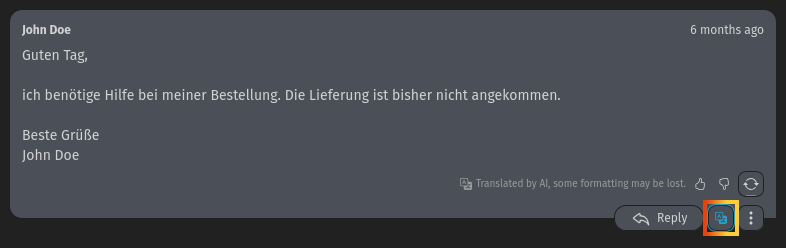
A translation replaces the original article content, and a note below the article tells you that you are reading a translation. Zammad keeps the formatting of the original text wherever it can, but some of it can get lost when the wording changes.
Next to a translated article, Zammad shows a translate button in the article action row whose icon turns blue while you read the translation. This button lets you switch between the translation and the original content.
INFO
The text highlighting feature is only available in the original text. Switch back to the original content if you want to highlight something in the article.
Choose your language
The language button in the ticket top bar shows the language code of your target language for translations, for example EN-US and the full language name in a tooltip on hover. Click the button to open the language menu, which lists the languages the configured translation service supports. Use the search field if you are looking for a specific language.
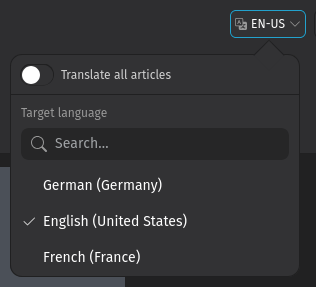
Zammad uses the language of your personal user settings as default. If the translation service doesn't support this language, it is set to Zammad's system default or English, if the system default isn't supported either.
Your translation target language is a personal setting: Zammad remembers it for your user account and applies it to every ticket you open, including tickets in other browser tabs.
The translation target language is independent of the language of Zammad's UI, which you set in your personal settings.
Translate a single article
Click the translate button in the article action row to translate this article into your target language. Click it again to switch back to the original text.

If the target language is not the one you want to read the article in, change it in the ticket top bar as described above.
Translate every article automatically
If your admin enabled automatic translation for your role, the language menu in the ticket top bar also contains the Translate all articles switch (see screenshot under Choose your language). While it is on, Zammad translates the articles of every ticket you open, so you don't have to translate them one by one. Articles which are already in your target language keep their original text; this requires the article language detection to be enabled by your admin.
Turn the switch off if you prefer to translate individual articles. Like your target language, this setting applies to every ticket you view.
If you want to read a single article in its original language again while the switch stays on for the others, use Show original on it.
Translation quality and feedback
Translations are generated automatically, so double-check the result before you rely on it.
Use the thumbs up or thumbs down buttons below a translated article to help your admin evaluate the quality of the translation service; a thumbs down opens a field where you can explain what went wrong. If you are not satisfied with a translation, use the regenerate button in the same row (tooltip Regenerate) to have the article translated again.