

Mobile view
Intro
The development of a dedicated mobile view for Zammad was driven by the increasing need for access while on the move. The desktop application offers responsive functionality for smaller screens, but it was determined to be too complex for optimal mobile use. This mobile view focuses on presenting the most critical information in a touch-friendly and modern design, prioritizing a streamlined user experience.
INFO
We intentionally do not provide specific instructions and comprehensive documentation for the mobile view! The overall UX should be intuitive and self-explanatory in most cases.
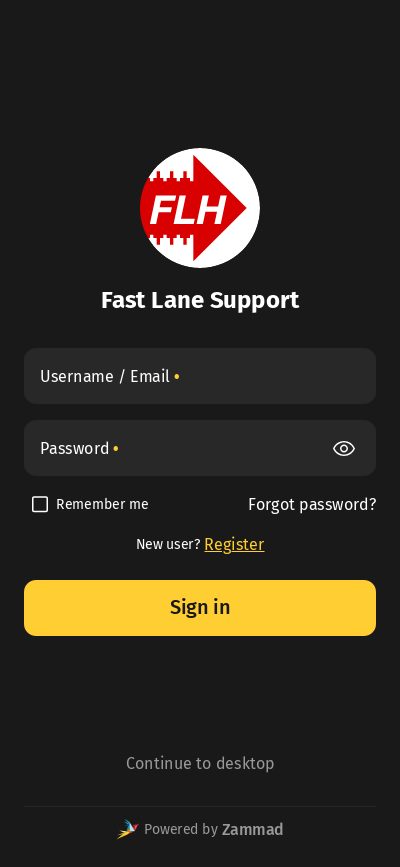
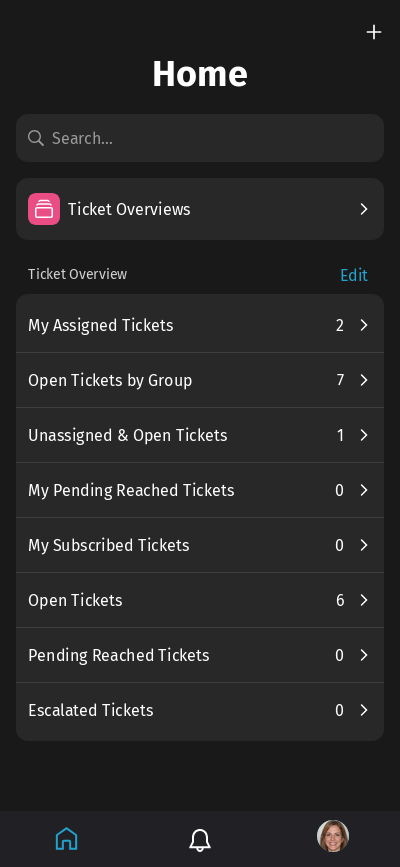
You can find screenshots below to get an impression how the mobile view looks like.
| Login | Home |
|---|---|
 |  |
Features
Mobile view provides you with a way to do your common Zammad daily tasks while on the go:
- Manage & use your ticket overviews
- Search for existing records
- Create a new ticket
- Reply in an already existing ticket
- Modify ticket attributes
- Modify customer attributes
- Modify organization attributes
- Track time on ticket articles
Push notifications
The mobile view can notify you about your tickets on your mobile device, even when the app is not open. Push notifications are turned on per device, not for your account as a whole: you can have them on your phone and leave them off on a tablet.
Turn them on with the Push notifications on this device switch in the Notifications section of your account page. If the switch is locked, the text below it tells you what is missing.
Every notification Zammad creates for you is also sent to your device, for example about new tickets, ticket updates, reached reminders or escalations. A push shows the same text as the entry in the notification list, and tapping it opens the ticket in the app.
On iPhone and iPad, push notifications are only available in the app added to the home screen with iOS or iPadOS 16.4 or later. Open the mobile view in Safari, tap Share and then Add to Home Screen. On Android, the installed app and the browser can both receive them.
If you turned notifications off for the app in the settings of your device, the switch stays locked until you allow them there again. A browser whose push service Zammad does not support cannot enable push notifications at all. Turn the switch off again to stop receiving them; signing out removes the device as well.
Push notifications are delivered by the push service of your browser and not by Zammad, so they can be delayed, for example by battery optimization on Android devices. While you are working in the desktop view, Zammad does not send push notifications to your mobile devices.
Limitations
Mobile view is also currently missing some features which are provided by the desktop view:
- Split article
- Link tickets and see linked tickets
- Execution of macros
- Ticket history
- Template creation & shared drafts
Additionally, certain features were intentionally omitted to improve the focus on important information:
- Most management features (except ticket user and organization management)
- Most knowledge base features (except ticket integration)
- Most account functions (except avatar and language preferences)
- Reports
- Caller log
- Live chat
Switch the views
Zammad implements a mobile device detection, which results in automatic redirection to mobile view. Even with this mechanism in place, it's possible to explicitly switch between the views by using app links.
In both desktop and mobile view login screens, you can find a link below the Sign in button to explicitly switch to the other view (see login screenshot from above as an example).
While you are signed in and want to switch from the mobile to the desktop view, go to your account by selecting your avatar at the bottom and select Continue to desktop (see account screenshot from above as an example). The other way round is similar: in the user menu, which your avatar at the bottom of the navigation sidebar opens, you can find the Continue to mobile entry.